Powerful Support Tools and U.S.-based Team
CameraFTP Cloud Recording Service Overview
CameraFTP offers the most flexible and versatile cloud recording service. The basic service is FREE with limited features.
Our service is compatible with most IP cameras/NVRs. You can also save cost by using an old phone/tablet/webcam
as an IP security camera, or use a PC as a very powerful and easy-to-use CCTV NVR system.
Our virtual camera & NVR apps support live 2-way video
and audio viewing/calling.
Why Cloud Surveillance & Recording?
If you've got a new security camera(s) that you want to monitor your home, business or loved ones,
you need Cloud Recording and Remote Playback. If you don't have a camera yet, you can buy one online.
Please visit our Supported Camera List first.
You can also use a webcam, smartphone or tablet as a security camera by
installing our virtual camera apps or software.
So why do you need Cloud Recording and CameraFTP service?
- Security Cameras / DVRs are NOT secure
-
They can be easily stolen or destroyed. For example, a burglar may break into your store and steal valuable goods.
If he steals the camera/DVR, the recorded footage will also be lost.
-
Using CameraFTP service, cameras automatically record footage to our cloud server in a secure and
remote data center. Burglars can never delete the recorded data in the cloud!
- Play back recorded footage remotely
-
If anything happened, you can easily "rewind" and play back the recorded footage from your PC,
Mac or Smartphone. It is more than just live monitoring, it is about securely preserving your footage no matter what happens.
- Real-time monitoring (live viewing) from anywhere
-
CameraFTP offers web-based camera viewer and mobile viewer apps for
iPhone, iPad, Android and Windows. If you already have a camera setup with our service,
then the viewer app is extremely easy. It supports 2-way live video and audio viewing or calling.
- Easy and low cost
-
In addition to offering greater storage and monitoring features,
CameraFTP is far less complicated to setup and use than most surveillance
services. You don't need to order DDNS (Dynamic DNS) service, you don't need to configure your
router/firewall, you don't need to worry about dynamic IP address, just configure the FTP/SMTP settings for your IP cameras,
and your cameras will automatically upload data to CameraFTP cloud storage.
-
Using local storage or FTP/SMTP/SFTP server will cost you more on hardware, and require you to handle the configuration for your devices. Moreover,
these local solutions cannot match our security and service features.
-
CameraFTP is designed for the mass market. Our price is dramatically lower compared
with services offered by traditional security companies,
and is far easier to setup. Most users do not require any support when configuring your device,
though you can always reach out to us with questions!
Order an IP Camera or Use an Old Phone/Tablet/Webcam
You need a camera to use our service. If you don't already have one, there are 2 options:
You also need a CameraFTP account. You can sign up for a free account easily.
If you have not done so already, go to www.CameraFTP.com and click
“Sign Up”. DriveHQ users can log in to www.CameraFTP.com directly.
A linked CameraFTP account will be automatically created. (The linked account is a different account).
CameraFTP offers the basic service for free, which includes all CameraFTP apps (virtual camera & NVR apps, and CameraFTP Viewer apps),
2-way live video & audio viewing / calling with our virtual camera apps, and very limited cloud recording.
Our paid service starts at only $1.50/month/camera for image recording, and $2.50/camera/month for video recording.
Configuring Your IP Camera / DVR to Upload via FTP/SMTP/SFTP
If you use CameraFTP Mobile Security Camera, Webcam Security Camera app or CameraFTP VSS software as a virtual
IP camera or NVR, then the configuration is extremely easy and straight-forward.
If you use a regular IP camera or NVR, then you need to configure the device to upload footage to CameraFTP.
The configuration interface varies depending on the camera brand and model. However, the steps are similar. We recommend
reading the product manual, and following our instructions below.
In your camera/DVR's setup interface, find the section for FTP setup (or SMTP/email setup if FTP is not available).
The camera will need FTP information as follows:
-
FTP/SFTP Host Name:
Enter ftp.cameraftp.com. Some cameras may only accept an IP address.
If so, enter 66.220.9.45. The port number is 21; for SFTP, it is 22.
- Username:
Your cameraftp.com account username.
- FTP Password:
A system-generated FTP Password that can be found in
"configure IP Cameras",
or your cameraftp.com account password (not recommended).
- FTP Mode:
In most cases, you should use Passive Mode. Active FTP Mode is often blocked by your firewall / router.
-
FTP Path or Directory
If you used the correct FTP Password associated with a camera license, then the FTP path/dir/folder field is not required. You can
enter the camera name (which is the folder to store the uploaded images/video clips). Usually you name a camera based on the monitored scene,
e.g. FrontDoor, Backyard, LivingRoom
or Driveway, etc. You can add a new camera (name) after you log in to
www.cameraftp.com.
If you have added a new camera with the name "FrontDoor" on www.cameraftp.com, then from your camera's configuration page,
you can enter "/FrontDoor" as the Path (or Directory).
If the folder doesn’t exist in your CameraFTP account at the time of this configuration,
it will be automatically created by the camera before the
first image/video file is uploaded.
If your camera/NVR supports SFTP, then it is recommended using SFTP. Some NVRs/cameras (e.g. Axis) may
require the SFTP Public Key Fingerprint. The MD5 version Public Key fingerprint is: b9a42dcab4fb7aaa476e3667cfcbef10.
If FTP is not supported by your camera/DVR, you can try the SMTP/email option. Most IP cameras and DVRs can send images or video clips
to an email address when a motion is detected. With CameraFTP's email-upload solution, emails are automatically processed and the attached images/video clips
automatically saved to the camera folder. You can use CameraFTP Viewer to view or play back the uploaded footage.
To use the email-upload feature, you must log in to www.cameraftp.com and create a new camera first; then click the gear icon below the camera thumbnail
for the detailed configuration info.
-
SMTP/Email Server name:
cftpMailUploader.drivehq.com or c.drivehq.com.
- Sender Email Address:
cftp_USERNAME_CAMERAID@Z.com
The USERNAME and CAMERAID must be replaced with the real username and cameraID.
You can find the exact email address by logging on to CameraFTP.com website, go to My Cameras page, then click the gear icon below a camera.
- Recipient Email Address:
cftp_USERNAME_CAMERAID@Z.com or cftp_USERNAME_CAMERAID@c.drivehq.com
- Username:
Your cameraftp.com account username
- SMTP Password:
Your cameraftp.com account password
- SMTP Port:
465 (with SSL, recommended), or 25
- SSL:
Select SSL for port 465; no SSL for port 25.
Note: If the camera/DVR does not let you enter an email (SMTP) server name, then you can select an email server supported by the camera.
You must use the username, password, sender email address, SMTP port and SSL option for that email server.
The recipient email address must be: cftp_USERNAME_CAMERAID@cftpMailUploader.drivehq.com or cftp_USERNAME_CAMERAID@c.drivehq.com.
The USERNAME and CAMERAID must be replaced with the real username and cameraID.
You can find the exact email address by logging on to CameraFTP.com website, go to My Cameras page, then click the gear icon below a camera.
The following values must be configured based on your subscription level.
-
Upload frequency or frame rate
For image recording, you must ensure that the camera connects to the FTP server
no more than 5
times per second
.
Going over this limit may be considered as abuse of the service; if you require higher connection frequency,
please contact CameraFTP’s sales team first.
For video recording, you don't need to worry about it.
-
Motion Detection:
Most cameras support motion detection. It is recommended enabling motion detection.
This can help lower the service cost and the bandwidth usage so that your camera is less likely to affect your Internet connection speed.
- Image / video Resolution:
Please set your image/video resolution based on your CameraFTP subscription.

Example of a security camera's FTP configuration page

Example of a security camera's (D-Link 933L) SMTP configuration page
When your camera is setup correctly, images or video clips will be uploaded to CameraFTP.com cloud storage. For better efficiency, images are
packaged into zip files; video clip files are not zipped. You can download the recorded files using any FTP client software (such as FileZilla),
or use CameraFTP's viewer apps for live viewing and playback.
Browser-based Camera Viewer and Mobile Viewer Apps
To play back the recorded footage, click on the Play button. The player will be launched.


You can also download
CameraFTP mobile apps for iOS, Android, Windows and Windows Phone.

The player will start playing back the recorded footage, beginning with the latest footage.
The timeline is on a 24-hour scale and you can drag the selector to play at
the desired time. You can set the playing speed (or Fast Play Mode), or launch multiple-window player.
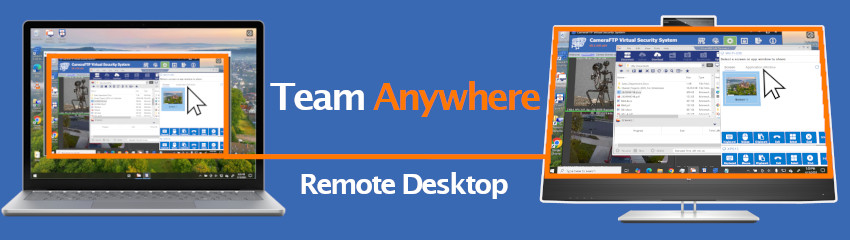
For paid members (and users who plan to order), we might be able to offer Remote Support through
DriveHQ Team Anywhere:
Camera Hardware and Cloud Recording Service Comparisons
CameraFTP is not a camera manufacturer. Compared with a typical manufacturer, our service has a lot of
advantages:
-
We focus on cloud services with the best cloud technologies. CameraFTP is a subsidiary of DriveHQ, the first Cloud IT solution provider.
Our FTP and cloud technologies have been around for over a decade!
-
Our service works with almost all IP cameras. You are not limited with a single camera manufacturer. In fact, you can use best of class cameras from multiple manufacturers.
-
We have a very flexible pricing model that can accomodate low-end home users and high-end enterprise users.
-
We have the most sophisticated user management and access control system for large enterprise customers or security service resellers.
-
CameraFTP Virtual Security System software can enhance many IP cameras' capabilities. Even if a camera cannot upload video/audio clips, VSS can connect to the camera's video stream and upload video clips to the Cloud.
For more detailed comparisons, please visit: